

Guide to Data Onboarding for WattCarbon Users
WattCarbon provides measurement and verification (M&V), an asset registry, and a system of record for tracking EAC (Energy Attribute Certificate) ownership. EACs reflect the environmental and economic externalities associated with energy projects, in particular the reduction of carbon emissions.
To accurately credit environmental impacts, WattCarbon runs M&V on each energy project. M&V requires proof of impact — meter data from the project that substantiates the carbon-reduction claim. This guide covers the three ways to get that data onto the platform.
Basic Terminology
Section titled “Basic Terminology”EAC — Energy Attribute Certificate. The unit WattCarbon registers to represent a verified hour of carbon reduction.
Asset — The physical energy intervention that produces EACs: a solar installation, battery, demand-response site, or building that underwent an energy-efficiency upgrade. An asset holds project metadata like location and meter references.
Meter — A timeseries data source attached to an asset. An asset can have one or more meters (electricity, gas, etc.).
Methodology — The M&V approach used to calculate hourly savings for an asset. Each asset has one or more methodologies, following OpenEAC Alliance approved standards. The primary methodology drives top-level summary calculations, grid and carbon scores, and EAC registration.
Registration — The process of creating EACs ex post, once actual energy savings have been calculated from a deployed asset.
WEATS — WattCarbon Energy Attribute Tracking System: WattCarbon’s asset registry and system of record for tracking and registering EAC ownership.
See the FAQ for answers to common terminology questions.
Choosing a path
Section titled “Choosing a path”There are three ways to get data onto the platform:
| Method | Best for |
|---|---|
| Web app upload wizard | One-off or batch CSV uploads, manual workflows, exploring the platform. Auto-detects assets and meters from a single file. |
| WattCarbon API | Programmatic / automated ingestion, integrations with your own systems, large-scale or recurring uploads. |
| Aristotle chat upload | Guided, conversational upload — drop a file into chat and Aristotle walks you through column clarifications before creating anything. Ideal for new accounts or unfamiliar file formats. |
All three paths write into the same data model — assets and meters created by any method are equivalent. Most customers start with the chat or web wizard for initial exploration, and graduate to the API for ongoing ingestion.
If you already use one of WattCarbon’s data-provider integrations (Arcadia, Bayou Energy, UtilityAPI, Enphase, etc.), you can skip all three — see Data → Connections in the left nav to set up a provider connection that pulls meter data automatically.
Part 1 — Onboarding via the web app
Section titled “Part 1 — Onboarding via the web app”The web app’s upload wizard takes a CSV or Excel file, analyzes its structure, suggests column mappings, and creates assets, meters, and timeseries data in one flow.
Prerequisites
Section titled “Prerequisites”- An active WattCarbon account
- A CSV or Excel file (.xlsx) containing your meter readings, up to 20 MB
- At minimum: a timestamp column and a value column (e.g. kWh). Address columns are optional but enable automatic asset creation.
Step 1 — Open the upload wizard
Section titled “Step 1 — Open the upload wizard”From the Meters page, click the Upload data button in the top right. (You can also reach the wizard directly at /accounts/{accountId}/upload.)
If you’re connecting data for the first time and prefer a provider integration, go to Data → Connections in the left nav and click Connect my data instead — that flow offers manual upload as a fallback.
Step 2 — Upload your file
Section titled “Step 2 — Upload your file”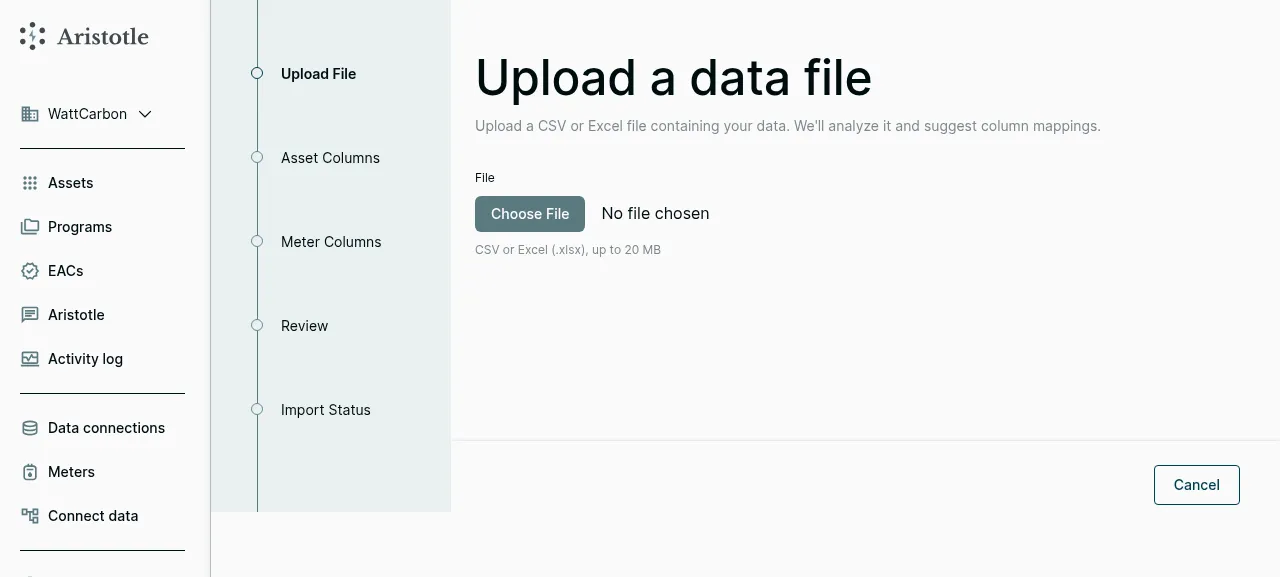
Drag and drop your CSV/Excel file, or click Choose File to browse. The wizard accepts CSV and Excel (.xlsx) up to 20 MB. As soon as the file is selected, WattCarbon analyzes its structure. If your account has no saved file formats, the wizard advances automatically. If it has any, a Use a saved file format? panel appears — choose Analyze from scratch or one of your saved formats, then click Continue →.
Step 3 — Confirm asset column mappings
Section titled “Step 3 — Confirm asset column mappings”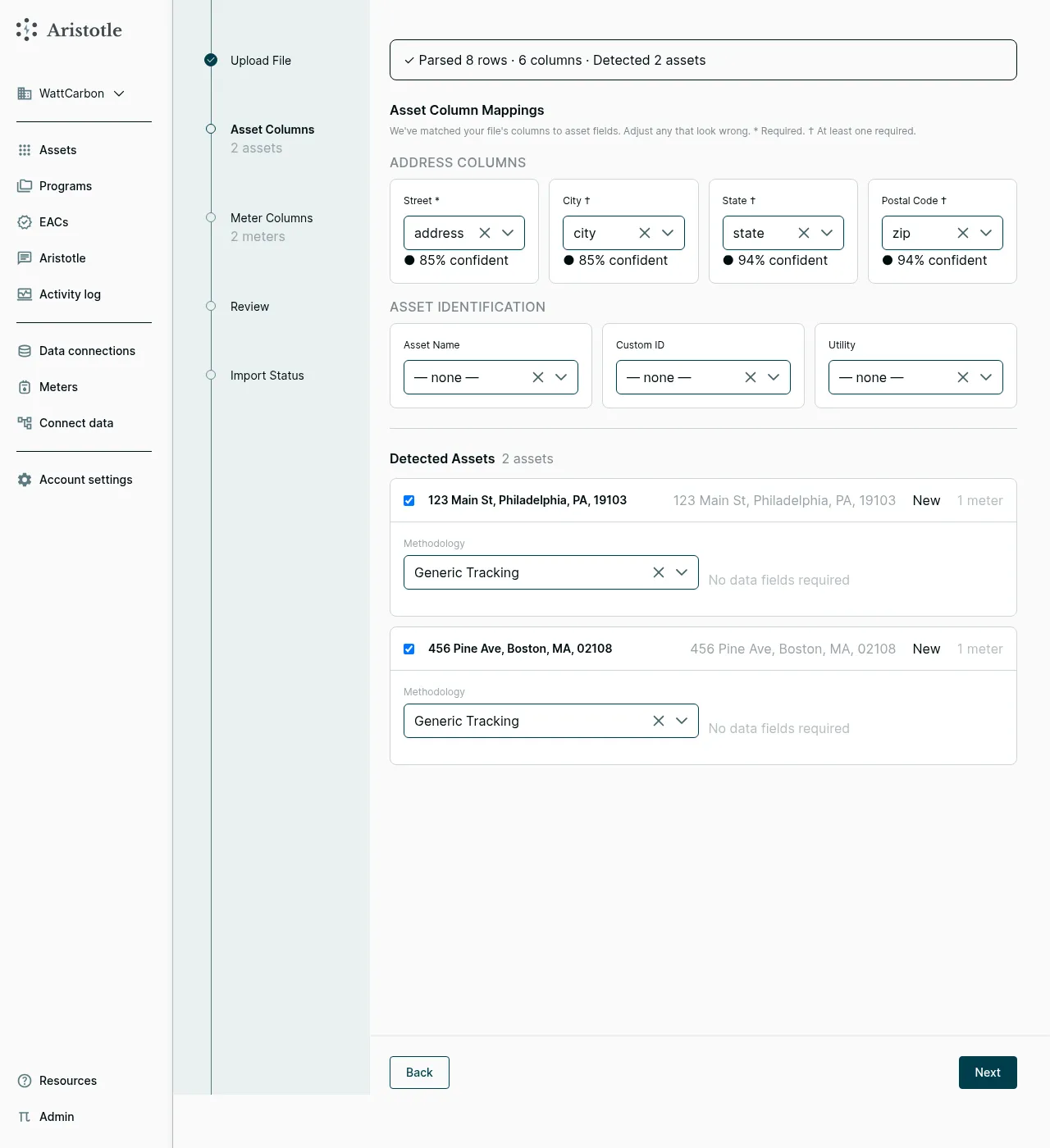
If your file includes location information, the wizard detects asset groupings and proposes column mappings. The header banner shows what was found — e.g. “Parsed 8 rows · 6 columns · Detected 2 assets.”
Address Columns — Street, City, State, and Postal Code are mapped from columns in your file. Each suggested mapping shows a confidence score so you can see how certain the auto-detection was; click a dropdown to override.
Asset Identification — Optional fields for Asset Name, Custom ID, and Utility. Custom ID is stored on the asset for your own reference; it plays no part in duplicate detection. On re-upload, rows are matched against your existing active assets by full address (street, city, state, postal code), and new meters are linked to the existing asset rather than creating a duplicate.
Spell addresses the same way every time. Matching compares all four address fields after trimming whitespace and lowercasing — nothing else is normalized.
123 Main Stand123 Main Streetare different addresses, as are two spellings that differ in punctuation or a missing postal code. When a later upload spells a site differently, you get a second asset for that site instead of new meters on the one you already have.
Detected assets — Each unique location becomes a proposed asset. For each one, pick a methodology from the dropdown. The wizard preselects the methodology that best matches the columns it found — Directly Measured Solar, Storage, Building-Level Retrofit Measurement, and others. When nothing matches confidently it falls back to Generic Tracking (no modeled baseline — pass-through metered data). The dropdown lists only the kinds your file’s columns satisfy, plus Generic Tracking, so a kind you expected can be absent if a required column is missing. Some methodology kinds require additional fields; the wizard prompts for any that are needed.
If a row shouldn’t become an asset, uncheck it.
Asset detection needs a Street column plus at least one of City, State, or Postal Code. If your file doesn’t have them, this step still appears but reports “No assets detected in this file” — click Next to go on to meter mapping and create meters without auto-creating assets.
Step 4 — Confirm meter column mappings
Section titled “Step 4 — Confirm meter column mappings”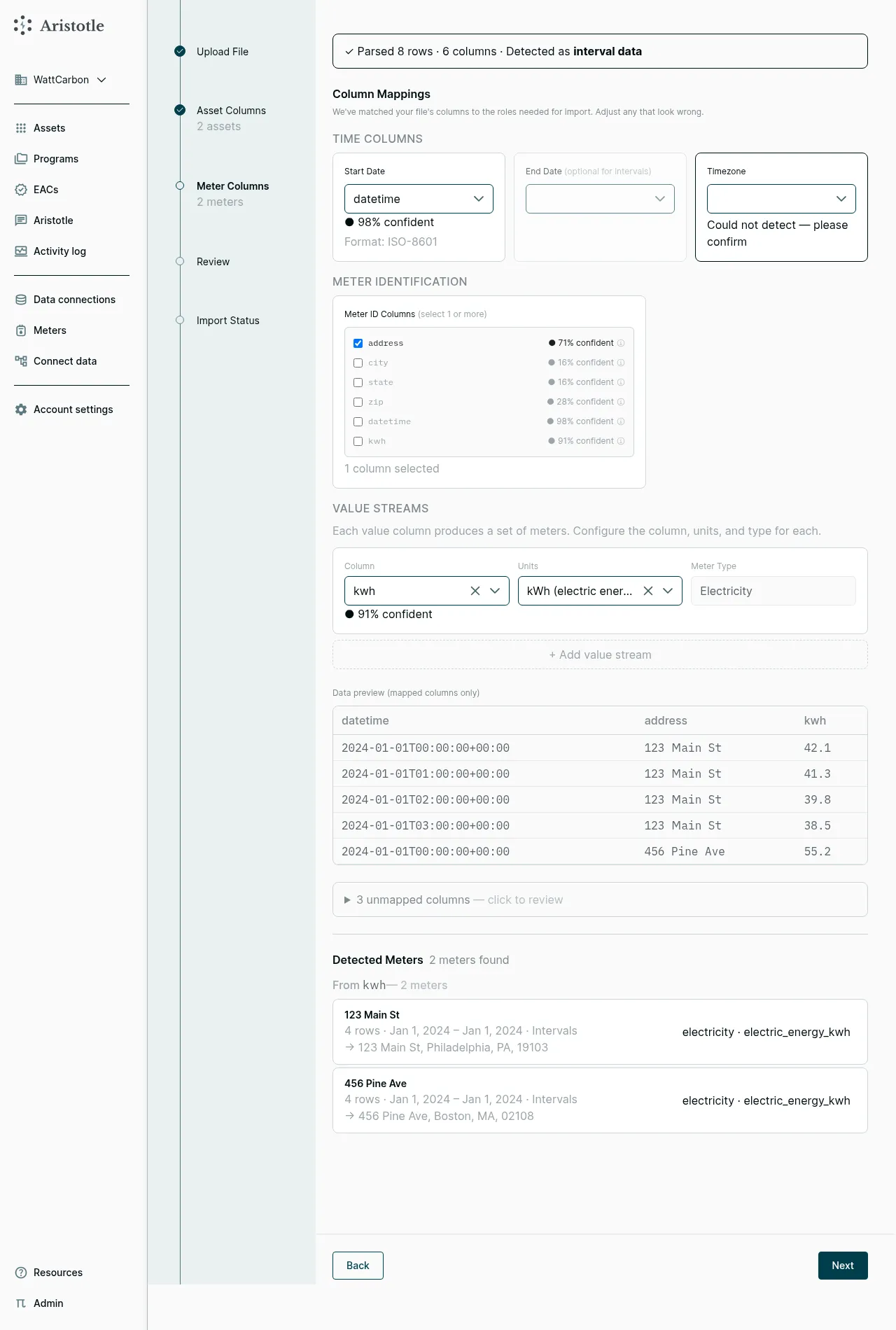
Time Columns — The wizard auto-detects timestamp columns. For interval data, you map a single Start Date column. For billing data, you map a Start Date and an End Date. If timestamps are not timezone-aware, you’ll need to confirm a timezone.
Meter Identification — Pick the columns that uniquely identify each meter. If your file contains multiple meters per file (e.g. one row per (address, timestamp)), check the columns that distinguish them. The wizard shows confidence scores here too.
Value Streams — For each value column (kwh, therms, etc.) pick the Units from the dropdown. The wizard suggests kWh (electric energy) by default for columns named like kwh. Meter Type sits next to it as a read-only field: the wizard derives Electricity, Gas, or Fuel Oil from the units you chose. Click + Add value stream to map additional value columns to the same meter.
When several value columns describe the same physical meter — for example a battery’s charge (energy_in_Wh) and discharge (energy_out_Wh) columns — the wizard combines them into a single meter carrying multiple unit-series rather than one meter per column. Columns that share a meter-identification group merge by unit; if two columns map to the same unit (which can’t coexist on one meter), the lower-confidence one is split out into its own meter with a warning. A battery file with separate charge and discharge columns therefore produces one meter holding both, which is the shape the battery-cookstove and storage methodologies expect.
Sample preview — A data preview at the bottom shows the first several rows so you can sanity-check the mapping.
Detected Meters — A summary at the bottom shows the meters that will be created, with row counts and date ranges.
Unmapped columns — A collapsed “N unmapped columns — click to review” panel lists every column that will not be imported, with the reason it was ignored and a confidence score. Expand it to check that nothing you need was dropped. To use one of them, select it in a dropdown above or add it as a value stream.
Re-analyze after editing mappings. Any change you make here puts the step into a dirty state: Next is replaced by Re-analyze ↻, with Discard Changes alongside it. Click Re-analyze ↻ to re-run the analysis with your mappings — until you do, you can’t advance to Review and the Import button stays disabled.
Step 5 — Review
Section titled “Step 5 — Review”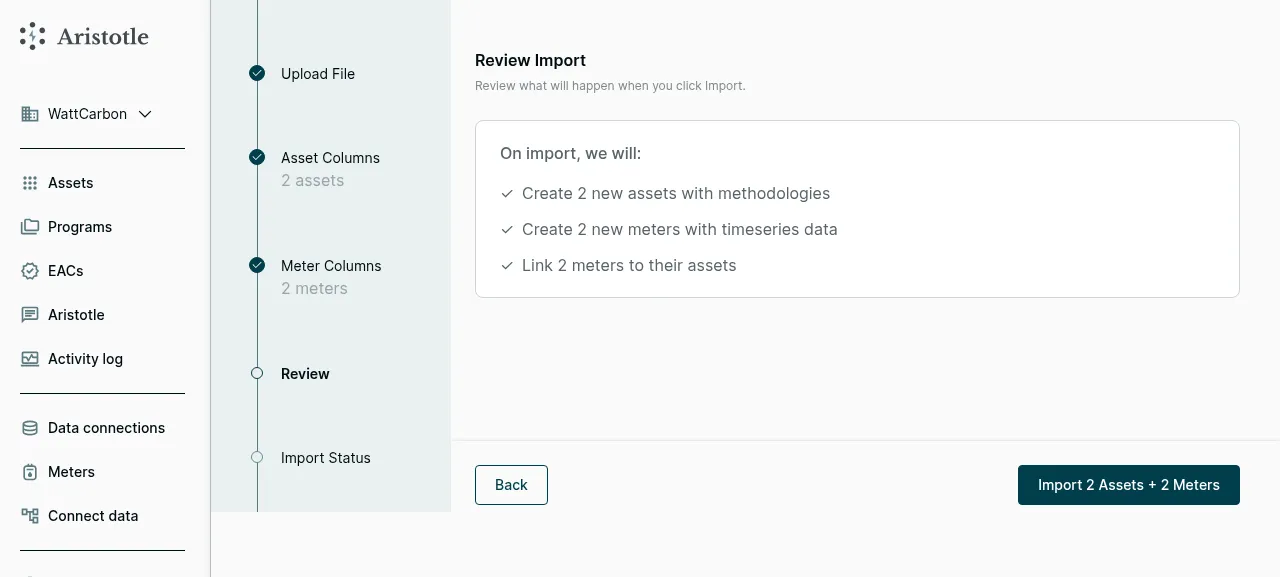
The review screen summarizes what the import will do:
- Number of assets to be created (with methodologies)
- Number of existing assets that will be linked instead of created, where an address matched an asset you already have
- Number of meters to be created (with timeseries data)
- Number of meter ↔ asset links to be made
Any warnings from the analysis appear here too, in a yellow panel below the summary.
Click Back to revise mappings. Click Import N Assets + N Meters to start.
Step 6 — Import status
Section titled “Step 6 — Import status”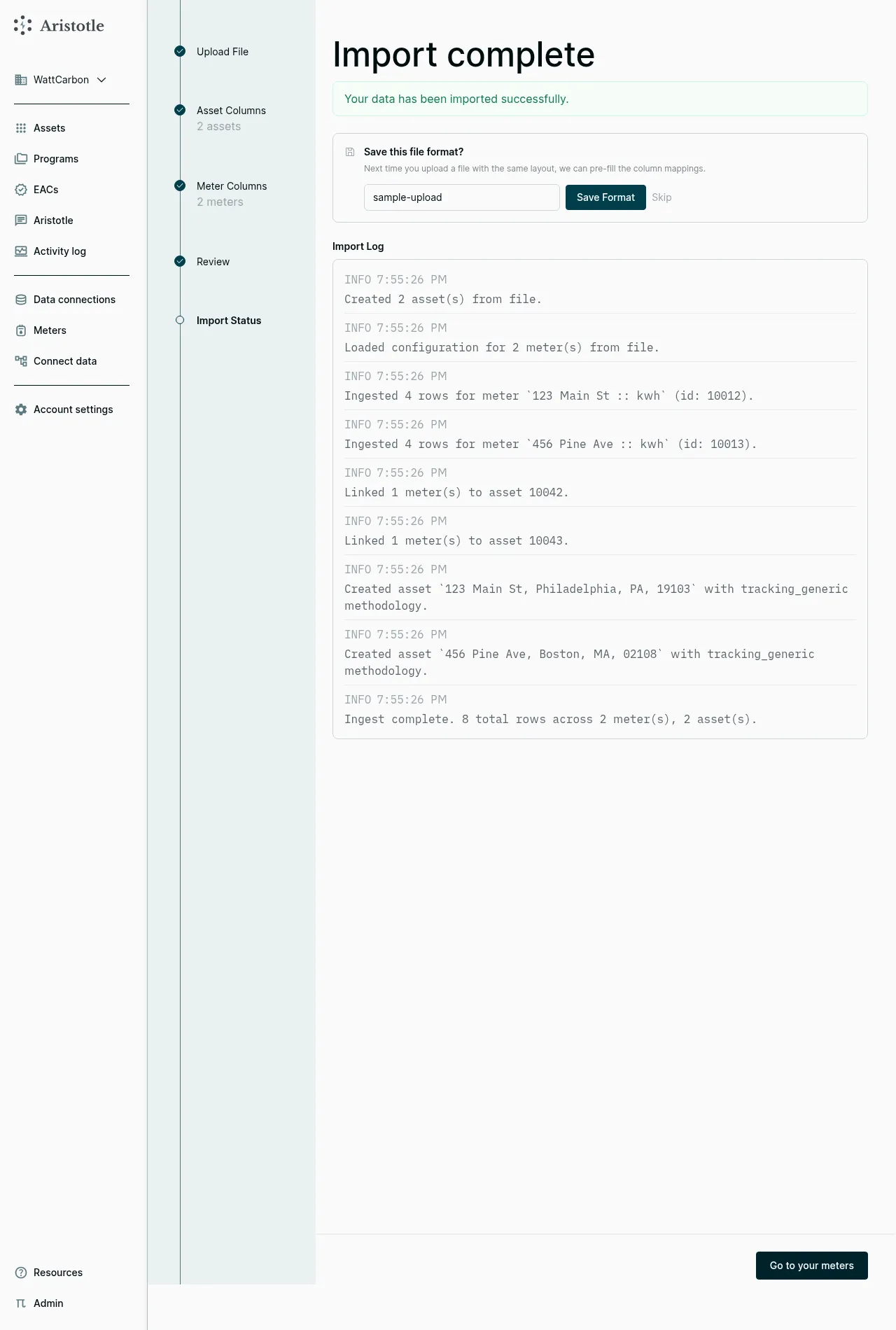
The import runs as a background job and streams a log to the page. When it finishes you’ll see “Your data has been imported successfully” with a per-meter, per-asset summary in the Import Log (e.g. “Ingested 4 rows for meter 123 Main St :: kwh”).
Save the format as a profile. If you’ll upload more files with the same layout — e.g. a recurring monthly export from the same source — name the format and click Save Format. Next time you upload, that format appears in the Use a saved file format? list on the upload step; pick it and click Continue → to apply its column mappings. Click Skip if this was a one-off.
Click Go to your meters to view the new meters, or navigate to Assets to see the newly-created assets and confirm methodologies.
On the Meters page, use Data availability to show any meter, meters that have interval data, or meters that have billing data. A meter with both kinds of data appears under both filters.
What gets created
Section titled “What gets created”For the example above (two addresses with four hourly readings each):
- 2 assets — one for each unique address, each with a Generic Tracking methodology
- 2 meters — one electric-energy meter per asset, holding the timeseries
- 2 meter↔asset links — each meter is linked to the asset at its address
After import, WattCarbon runs M&V on each asset’s methodology. Results appear on the asset detail page; once enough data is in place, EACs are registered on a regular cadence.
Step 7 — Configure methodologies (optional)
Section titled “Step 7 — Configure methodologies (optional)”The wizard auto-creates a methodology for each detected asset (defaulting to Generic Tracking when you didn’t pick another). You can review, edit, or add more methodologies from the asset’s Configure tab — useful when you want a richer M&V model than the wizard’s default, or want to track an asset under multiple methodologies side by side.
Open an asset from the Assets list, then click Configure in the lifecycle stepper at the top of the page.
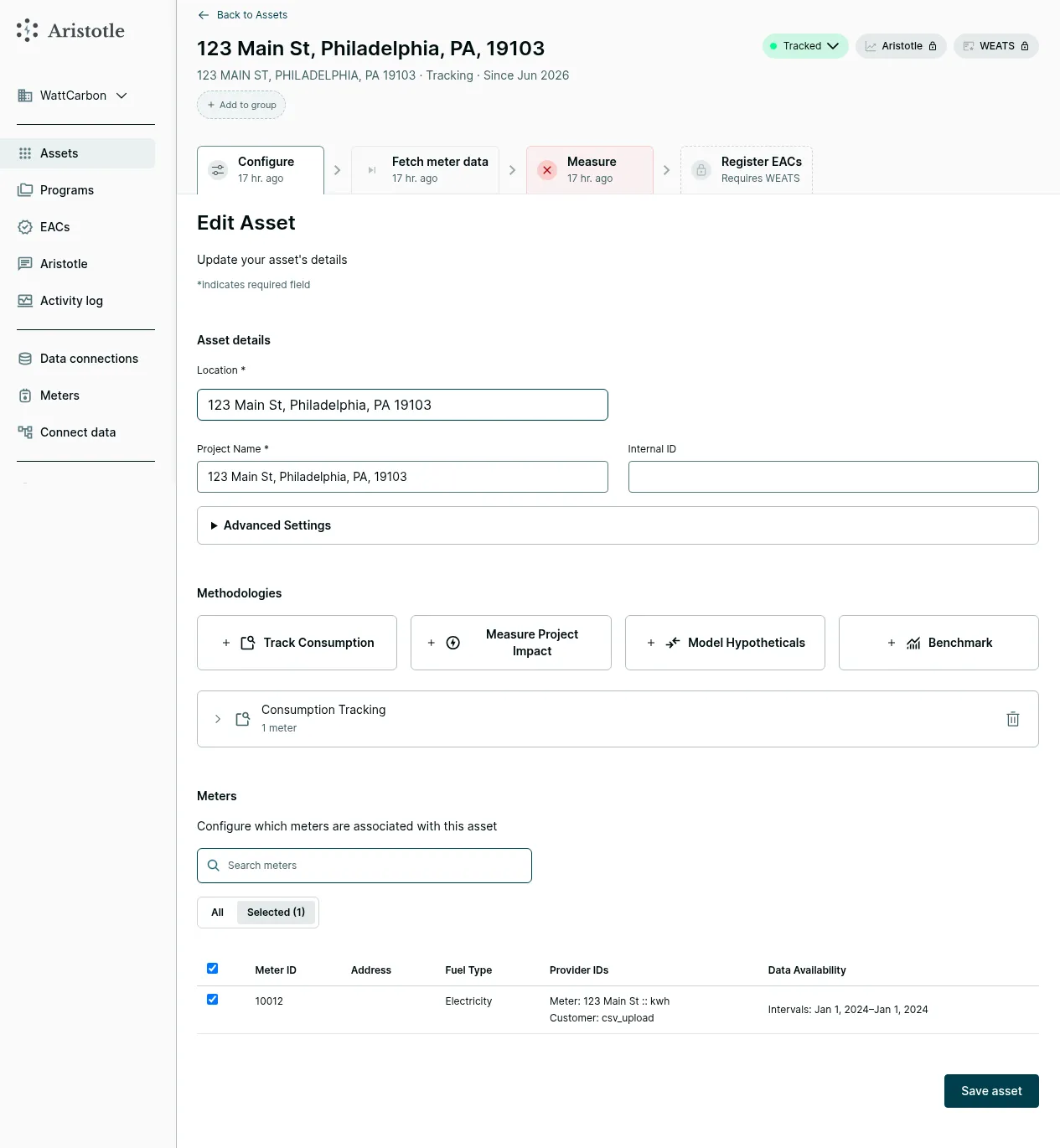
The Configure page has three sections:
- Asset details — edit Location, Project Name, and Internal ID. The location drives the weather data used for M&V. An Advanced Settings panel in this section also holds Grid Operator, Grid Region, Utility, and Energy prices, which improve the accuracy of bill-savings calculations.
- Methodologies — the asset’s methodologies, with four large buttons to add new ones grouped by intent: Track Consumption, Measure Project Impact, Model Hypotheticals, Benchmark.
- Meters — the meters linked to this asset.
Adding a Track Consumption methodology
Section titled “Adding a Track Consumption methodology”Click + Track Consumption to add a tracking methodology — the simplest kind, useful for monitoring raw consumption from interval data without a modeled baseline.
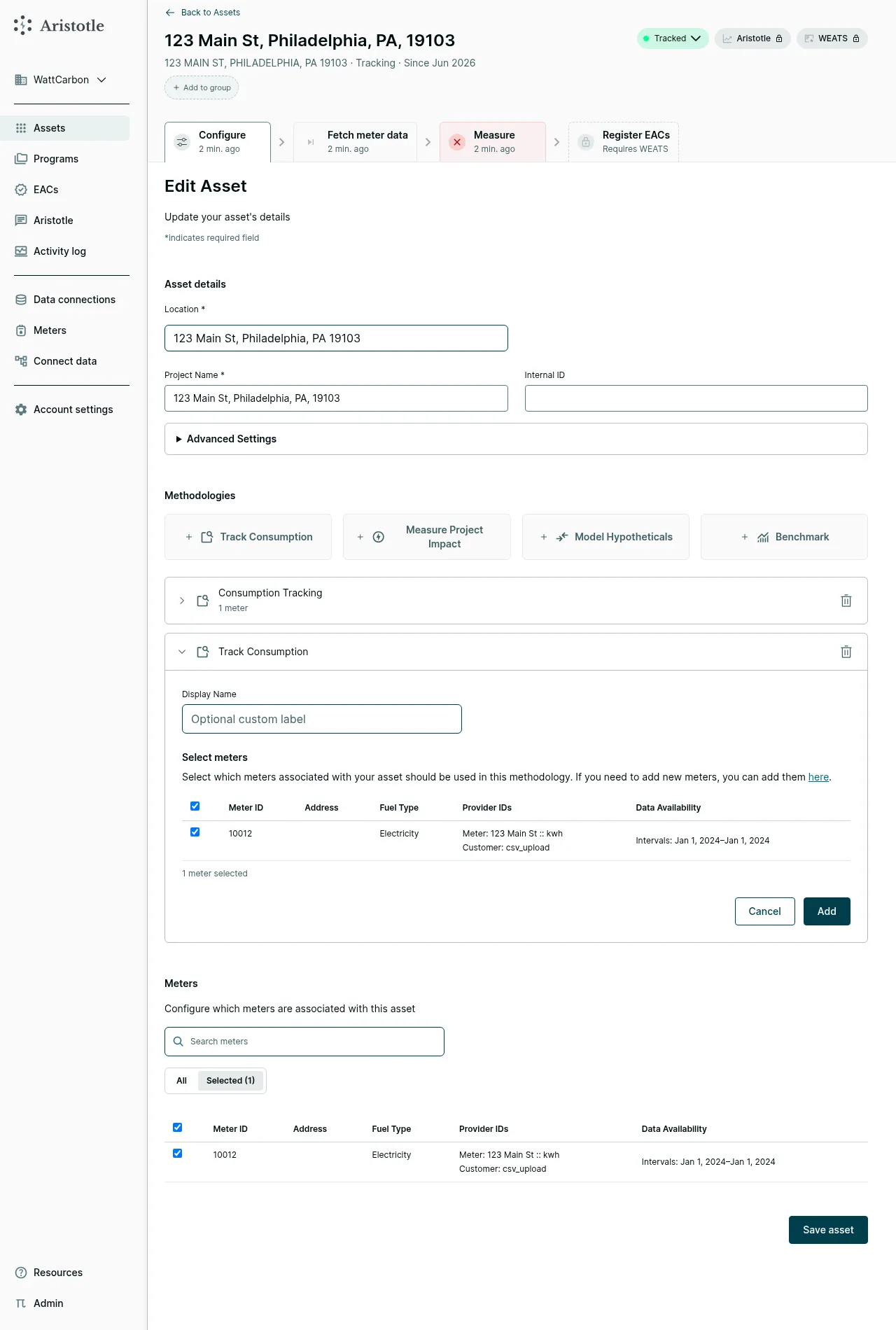
A new editable row appears with:
- Select meters — the meters that should feed this methodology. Defaults to all meters already on the asset; uncheck to exclude. If you need a meter that isn’t listed, the here link takes you to add one.
- Additional Settings — a collapsed panel below the meter table, holding Display Name: an optional custom label (otherwise the kind is used).
Click Add to save the new methodology, or Cancel to back out.
Other methodology intents
Section titled “Other methodology intents”The other three buttons add methodologies of different kinds:
- Measure Project Impact — adds an M&V methodology that builds a baseline model from the meter data and calculates savings against it. You’ll pick a specific kind (e.g. Directly Measured Solar, Building-Level Retrofit Measurement) and provide any kind-specific fields (e.g. nameplate capacity for solar, building type / area / install dates for electrification).
- Model Hypotheticals — what-if analysis on observed meter data (e.g. fuel-switching scenarios).
- Benchmark — generates a deemed loadshape from asset criteria without meters — used for reference / benchmark methodologies.
The first methodology you add becomes the primary methodology and drives the asset’s top-level summary, grid and carbon scores, and EAC registration. Subsequent methodologies still produce their own measurement results.
You can change the primary later. Once an asset carries more than one saved methodology, each row shows a star — click the star on a row to make that methodology primary. The current primary shows a filled star.
Click Save asset at the bottom of the page to persist your changes. The asset will re-measure on the next scheduled run.
Part 2 — Onboarding via the API
Section titled “Part 2 — Onboarding via the API”The WattCarbon API is the right path for programmatic or recurring ingestion. The pattern is the same as the wizard, just expressed as HTTP calls: create meters with timeseries, create assets, attach methodologies.
Prerequisites
Section titled “Prerequisites”- API credentials — an
API_KEY. Create one yourself under Account Settings → API Keys in the web app; it’s shown once, at creation, so copy it somewhere safe. Make sure you’re viewing the correct account (top-left account switcher) before creating it — a key is scoped to a single account. - Select only the scopes that the integration needs. A key cannot receive a scope that you do not hold.
- An HTTP client. The examples below use Python’s HTTPX library; any HTTP client works.
Step 0 — Set your API key
Section titled “Step 0 — Set your API key”Send your API key directly as a bearer credential.
import httpx
client = httpx.Client(base_url="https://api.wattcarbon.com")client.headers["User-Agent"] = "a unique name for your app"client.headers["Authorization"] = "Bearer " + API_KEY
The account-scoped requests below all take an account_id. Each API key belongs to a single WattCarbon account, so this is just your account’s numeric ID — it appears in the app URL when you’re viewing your account and is provided alongside your API key. Set it once:
account_id = 123 # your WattCarbon account IDStep 1 — Create a meter
Section titled “Step 1 — Create a meter”A meter holds the energy timeseries. Use POST /accounts/{account_id}/meters. Four fields are required: apiProvider (use "manual" for data you upload yourself), meterType (e.g. "electricity" or "gas"), meterCategory, and location.
The meter category records what kind of device the meter’s data comes from. It’s distinct from meterType (the unit of measure — electricity vs. gas): a single meter type can describe many categories of device. Pick the category that best matches the data source:
| Category | Device |
|---|---|
utility |
Utility revenue meter — the meter your bills are based on |
point_of_common_coupling |
Net grid-interconnection meter (point of common coupling) |
solar |
Solar inverter |
battery |
Battery / energy-storage system (BMS) |
ev_charger |
EV charging equipment (EVSE) |
generator |
On-site generator (backup, CHP, fuel cell) |
hvac |
HVAC system / thermostat / heat-pump controller |
signal |
Non-energy control, price, or dispatch signal |
other_loads |
Directly-measured sub-load behind the meter (“other loads”) — e.g. a building’s own load metered on its own |
other |
Anything else |
Use other when none of the specific categories fit.
meter_response = client.post( f"/accounts/{account_id}/meters", json={ "apiProvider": "manual", "meterType": "electricity", "meterCategory": "utility", "location": { "street": "606 Ellis St", "city": "San Francisco", "state": "CA", "country": "US", "postalCode": "94109", }, },)meter_response.raise_for_status()meter_id = meter_response.json()["id"]The location field accepts either a structured object (as above), a free-text address, or {"latitude": ..., "longitude": ...}.
Step 2 — Upload meter timeseries
Section titled “Step 2 — Upload meter timeseries”Upload a CSV of meter readings to one of two endpoints depending on data granularity:
POST /accounts/{account_id}/meters/{meter_id}/timeseries/intervals— sub-hourly, hourly, or daily intervalsPOST /accounts/{account_id}/meters/{meter_id}/timeseries/bills— monthly billing data
Step 3 — Create an asset
Section titled “Step 3 — Create an asset”Once meters exist, create an asset using POST /accounts/{account_id}/assets:
asset_response = client.post( f"/accounts/{account_id}/assets", json={ "name": "My asset", "customId": "SP123", "location": "60 Greene St Riverside IA", "utility": "ABC Utility", "meterIds": [meter_id], },)asset_response.raise_for_status()asset_id = asset_response.json()["id"]locationis required on the asset (it’s what’s used for weather data, even if the meter has a location).customIdis optional but lets you enforce a unique identifier per site within your account.meterIdsattaches existing meters to the asset; meters can also be attached at the methodology level.
For bulk creation, use POST /accounts/{account_id}/assets/csv with a CSV — contact support for the bulk schema.
Step 4 — Add a methodology
Section titled “Step 4 — Add a methodology”Methodologies are added separately so a single asset can carry multiple. Use POST /accounts/{account_id}/assets/{asset_id}/methodologies:
add_methodology_response = client.post( f"/accounts/{account_id}/assets/{asset_id}/methodologies", json={ "kind": "solar", "meterIds": [meter_id], "commencedOperationDate": "2022-08-01", "nameplateCapacityKw": 123, "inverterDataId": "1234", "inverterDataSource": "enphase", },)add_methodology_response.raise_for_status()The response includes the created methodology with its ordinal — a 0-based index indicating the methodology’s position on the asset. The first methodology added gets ordinal: 0, the second gets ordinal: 1, and so on. The ordinal is used to reference a specific methodology in subsequent API calls (e.g. removing a methodology or changing the primary):
{ "id": 456, "ordinal": 0, "kind": "solar", "createdTime": "2024-03-15T12:00:00Z", "meterIds": [999], "commencedOperationDate": "2022-08-01", "nameplateCapacityKw": 123, "inverterDataId": "1234", "inverterDataSource": "enphase"}The first methodology you add becomes the primary by default. The primary methodology drives the asset’s top-level summary, grid and carbon scores, and EAC registration. Non-primary methodologies still produce their own measurement results but don’t contribute to headline numbers.
Other methodology kinds take different fields — for example, building_eemetered (electrification) requires building characteristics and project install dates:
client.post( f"/accounts/{account_id}/assets/{asset_id}/methodologies", json={ "kind": "building_eemetered", "meterIds": [meter_id], "buildingType": "single_family_attached", "areaSqft": 1500, "yearBuilt": 1990, "numberOfStories": 2, "modelLibrary": "opendsm_current", "solarCommencedOperationDate": "2023-07-15", "projectInstall": { "startDate": "2024-01-15", "completionDate": "2024-03-01", }, "spaceHeating": {"legacyFuel": "gas", "fuel": "electricity"}, "waterHeating": {"legacyFuel": "gas", "fuel": "electricity"}, },).raise_for_status()Each end use (spaceHeating, waterHeating, cooking) takes the fuel today
(legacyFuel) and the fuel after the project (fuel). The API derives the
previous fuel from those pairs. Send only the end uses the project changes.
With opendsm_current, the hourly electricity model automatically fetches Global Horizontal Irradiance (GHI) weather data. If onsite solar started during the baseline, set solarCommencedOperationDate. Omit this optional field if the date is unknown.
Methodology kinds
Section titled “Methodology kinds”Methodology kinds fall into four categories:
- Tracking (
tracking) — Pass-through of metered data, no modeled baseline (e.g.tracking_generic). - Impact (
impact) — Metered M&V methodologies that build a baseline and calculate savings against it (e.g.solar,storage_direct,solar_storage,building_eemetered). - Benchmark (
benchmark) — Generate a deemed or reference loadshape from asset criteria (e.g.building_reference,solar_reference,building_retrofit_reference). - Hypothetical (
hypothetical) — Reimagine observed meter data under different conditions (e.g.fuel_switch_hypothetical).
Common kinds:
| Kind | Display name |
|---|---|
solar |
Directly Measured Solar |
storage_direct |
Storage |
solar_storage |
Solar + Storage |
building_eemetered |
Building-Level Retrofit Measurement |
tracking_generic |
Generic Tracking |
building_reference |
Building Reference |
solar_reference |
Solar Reference |
building_retrofit_reference |
Building Retrofit Reference |
building_retrofit_reference models a whole-building loadshape both before
and after an NREL ResStock (residential) or ComStock (commercial) upgrade,
using NREL reference data alone — no meters required on the asset. You pick
the building stock/type and intervention (e.g. HVAC replacement), and can
optionally size the result by annual electricity/gas usage instead of the
default floor-area scaling.
For the complete list and each kind’s required fields, see the API documentation. To pick a methodology, you can also use the methodology selector or contact support@wattcarbon.com.
Changing the primary methodology
Section titled “Changing the primary methodology”Use the batch operations endpoint to designate a different methodology as primary:
client.patch( f"/accounts/{account_id}/assets", json=[{ "op": "setPrimaryMethodology", "assetId": asset_id, "ordinal": 1, }],).raise_for_status()The ordinal is the 0-indexed position of the methodology on the asset. Changing the primary creates a new asset version internally, preserving audit history.
Part 3 — Onboarding via Aristotle chat
Section titled “Part 3 — Onboarding via Aristotle chat”Aristotle, WattCarbon’s AI assistant, can accept a CSV or Excel file directly in the chat composer and guide you through creating assets and meters without leaving the conversation. It uses the same analyze-and-ingest pipeline as the web upload wizard, so the results are identical.
Availability. Chat-driven upload is available to all accounts with chat access. New accounts with no assets yet see it offered automatically as a suggested action on the chat welcome screen.
How it works
Section titled “How it works”-
Attach your file. Click Attach data below the chat composer and select a .csv, .tsv, .xls, or .xlsx file (up to 20 MB). Send the message — a brief description is optional but helpful.
-
Aristotle analyzes the file. Behind the scenes Aristotle calls its
analyze-uploadtool, which inspects column names, data types, and sample values. It then reports what it found and flags any columns it could not resolve confidently. -
Clarify ambiguous columns. Aristotle asks targeted follow-up questions for anything it couldn’t determine automatically — for example: “The
reading_datecolumn looks like it could be MM/DD/YYYY or DD/MM/YYYY. Which format is it?” Answer in plain language. Each answer is captured as a column hint and fed back into re-analysis, so you only need to answer each ambiguity once. -
Review the ingest proposal. Once the file is fully understood, Aristotle posts an ingest proposal card: a one-line summary of what will be created, plus a Show details toggle that reveals the exact ingest config — assets, meters, and meter ↔ asset links — as JSON. Nothing is written to the platform at this point.
-
Confirm. Click Confirm on the proposal card to trigger the actual import, or Cancel to discard the proposal. On confirm, Aristotle creates the assets and meters in the background and then posts a follow-up message confirming what was created (or, on failure, explains the error and offers to retry).
What gets created
Section titled “What gets created”The same objects as the web wizard: assets, meters, and meter ↔ asset links. Each asset gets the methodology the analyzer infers from your file’s columns, exactly as the web wizard does — for example solar when nameplate-capacity and inverter columns are present. When nothing matches confidently, the asset falls back to Generic Tracking. You can change or add methodologies afterward from the asset’s Configure tab (see Step 7 above).
Supported file types
Section titled “Supported file types”CSV, TSV, and Excel (.xls / .xlsx), up to 20 MB — a slightly wider set than the web upload wizard, which takes .csv and .xlsx only.
- You can steer Aristotle before attaching a file: describe your data (“I have monthly gas bills with columns for address, start date, end date, and therms”) and it will be primed to interpret the file correctly.
- If the initial proposal looks wrong, just say so in plain language — for example “the
kwhcolumn is actually therms” — and Aristotle re-analyzes with the correction. - After confirmation, navigate to Assets or Meters in the web app to see the newly created records and add additional methodologies.
What happens next
Section titled “What happens next”Once assets, meters, and methodologies are in place, WattCarbon runs M&V on each methodology and computes hourly savings. Results land on the asset detail page in the web app. EACs are registered on a recurring cadence and either allocated to designated recipients or deposited into your account.
Questions?
Section titled “Questions?”Contact support@wattcarbon.com or check the FAQ.